How translated content is delivered to GL Strings
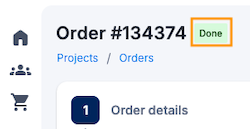
Once the TransPerfect Translations workflow is complete, the translations are imported to the order as delivery files and automatically added to the project. At this stage, the order is automatically set to the Done status.
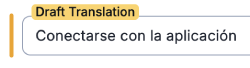
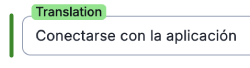
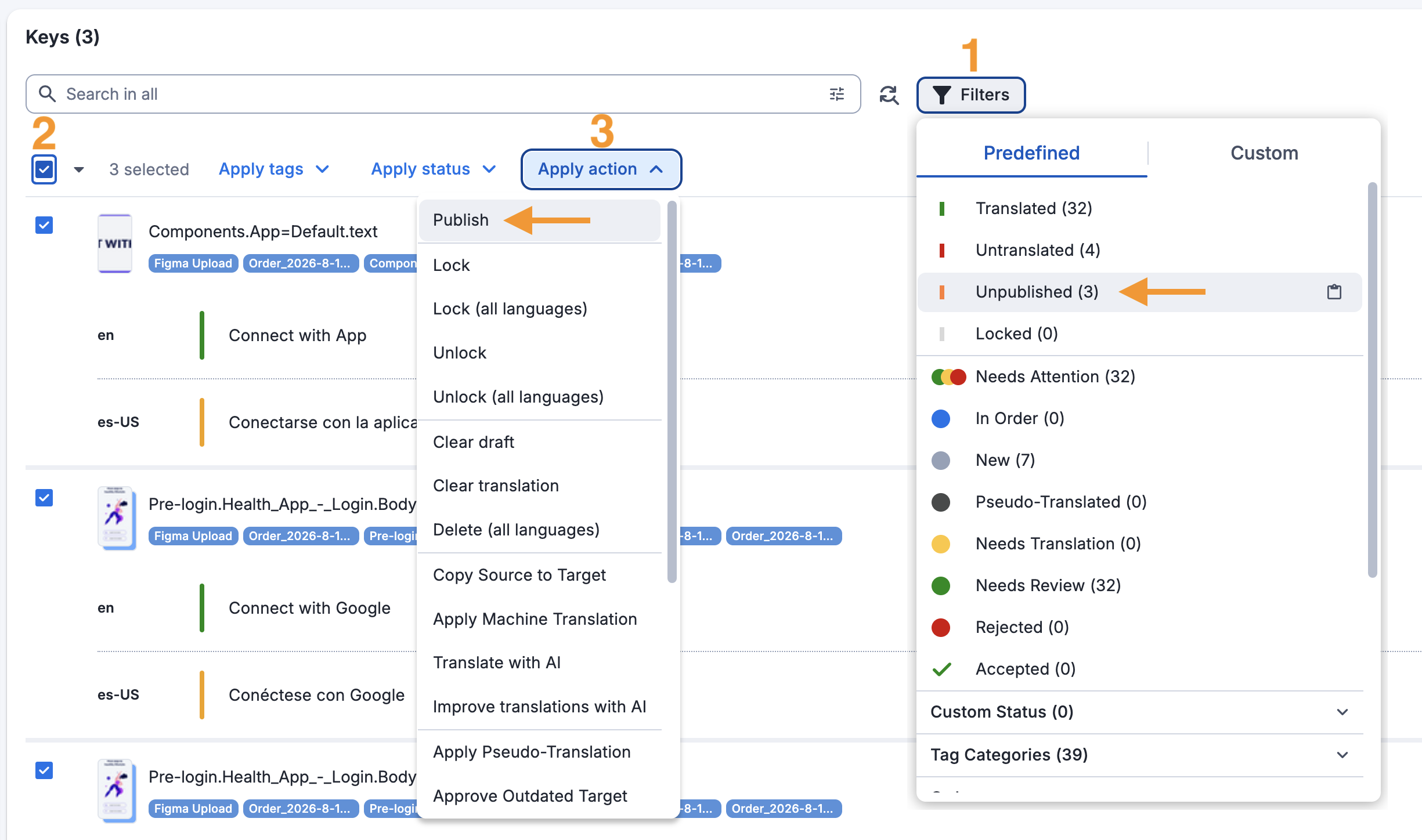
The translation delivery will be imported into the GL Strings project as Draft translations by default. Drafts are considered proposed translations to be reviewed and, as such, they are not immediately published to your integrated app. To have translations delivered as Translations and immediately available to your integrated app, speak with your TransPerfect Translations services team to update the translation delivery settings.
Identify drafts vs translations on GL Strings
To publish drafts, you need to:
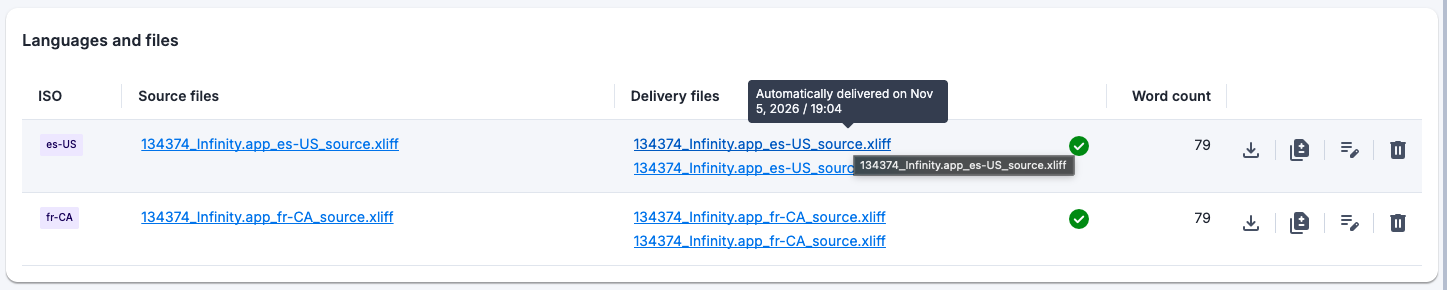
Source and delivery files can be found under the order's Language and files section in their respective columns. Both sets of files are hyperlinked so that you can download them in XLIFF format. This way, you can download and import the source or delivery files back into your project anytime (if needed).

Next to the files, there is:


If any updates are made to a delivery file, these are included in a new version in the Delivery files column. You can hover over any delivery file to display a tooltip with its import timestamp. In turn, the editor will always display the newest version of the translated values.