GL Strings supports all ISO 639-1, 639-2, and 639-3 language codes. If you require additional, more rare locales for translation we also support custom languages.
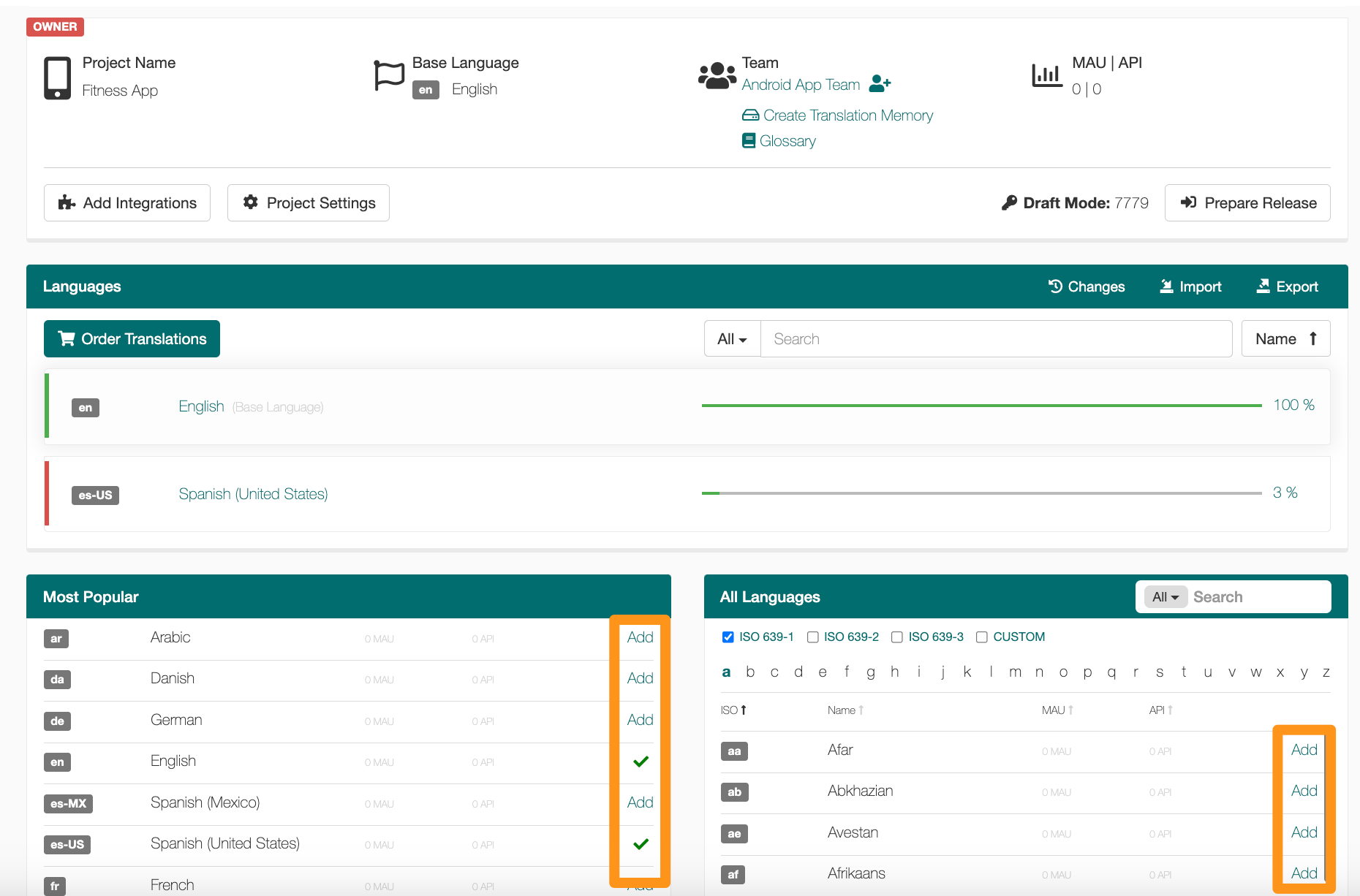
On the Project dashboard, you can see detailed information about your Project in general and view all existing languages associated with your app. To make changes or updates to the languages currently in your Project, you can do so via the Project dashboard.
Add a new language
Option 1: Scroll to the Most Popular list > click Add next to the language you want to add from a short list of popular language codes.
Option 2:
Scroll to the All Languages list.
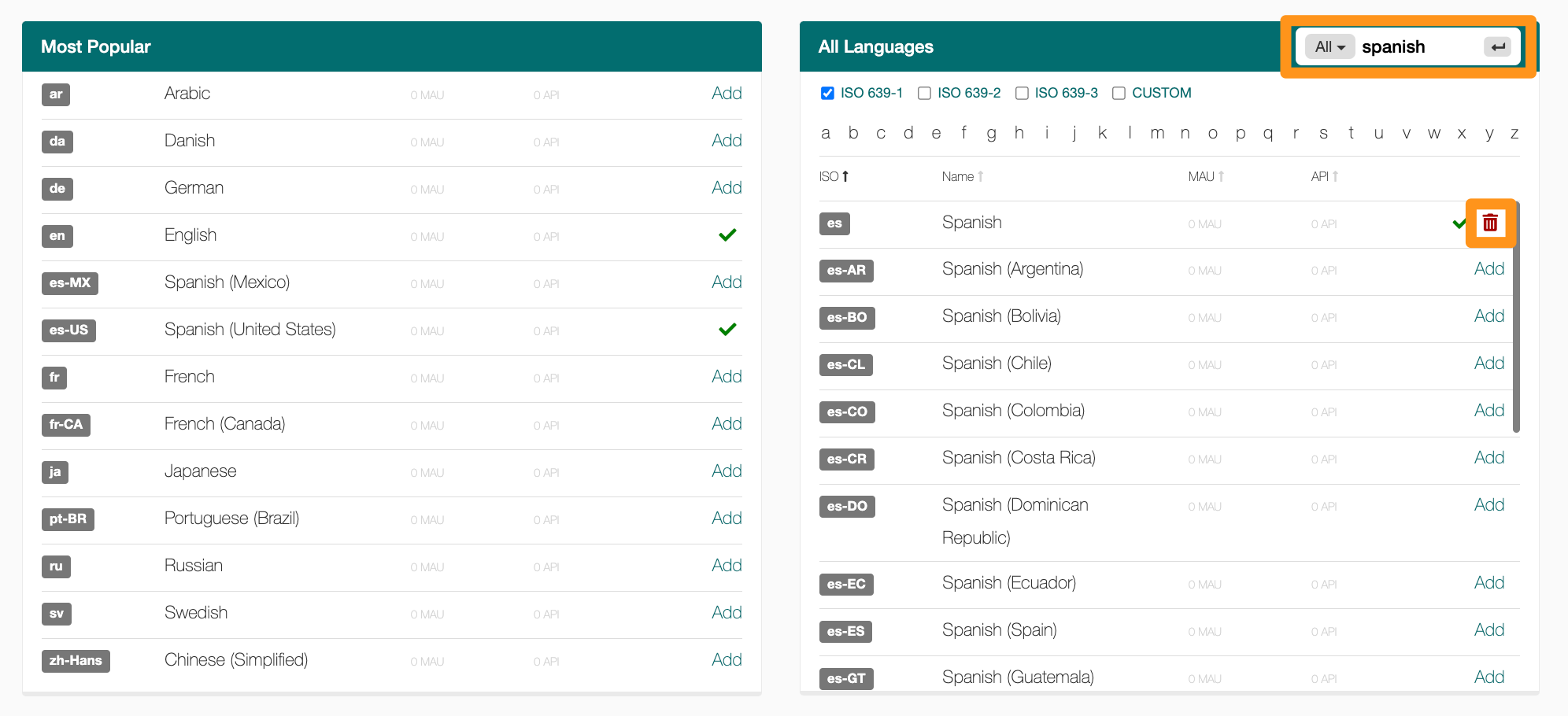
In the search bar, enter the language name or ISO code you want to add.
The search defaults to ISO 639-1 language codes. Select additional language codes (ISO 639-2, ISO 639-3, CUSTOM) if necessary.
Click Add next to the language you want to add.
Delete a language
Scroll to the All Languages list.
In the search bar, enter the language name or ISO code you want to delete.
Click the Remove language red trash icon to delete the language.
When entering a custom language, GL Strings will automatically search the available ISO 639-1 codes to ensure you do not create duplicate codes. If the code does not exist on GL Strings, then you will be able to create a custom language for your translations.
Scroll to the All Languages list.
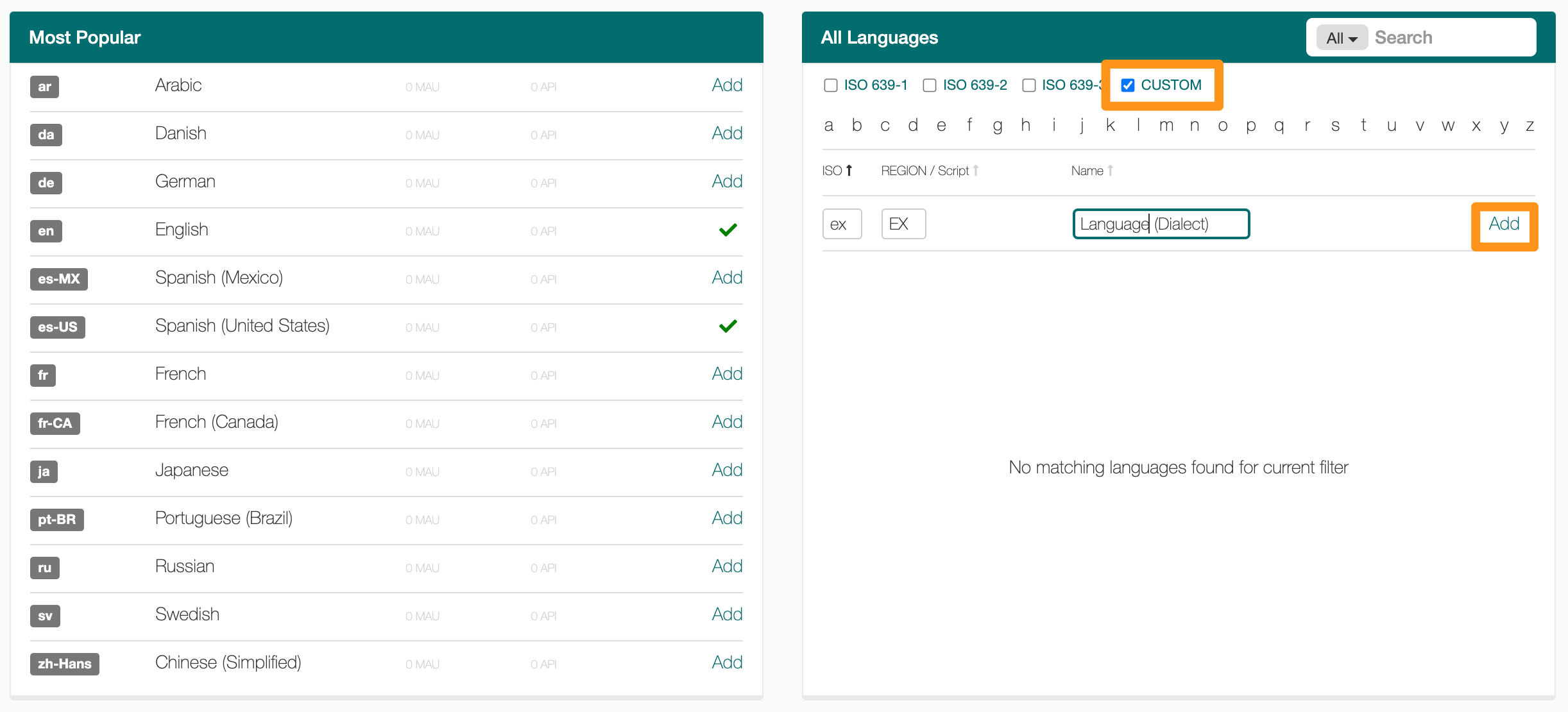
Mark the CUSTOM checkbox.
Enter the two letter ISO code, the two letter Region code, and the language Name.
Click Add next to the custom language you entered.
⚠️ Warning: If your Project is integrated with your app, check with your integration engineer before changing the base language as you may need to update your integration. If you do not update the integration with the new base language code, this can cause issues with your application.
Considerations before changing the base language:
The new base language must already be added to the project.
The values will not migrate between the old and new base language. You will need to migrate the values yourself.
Once you are ready to change the base language, follow these steps:
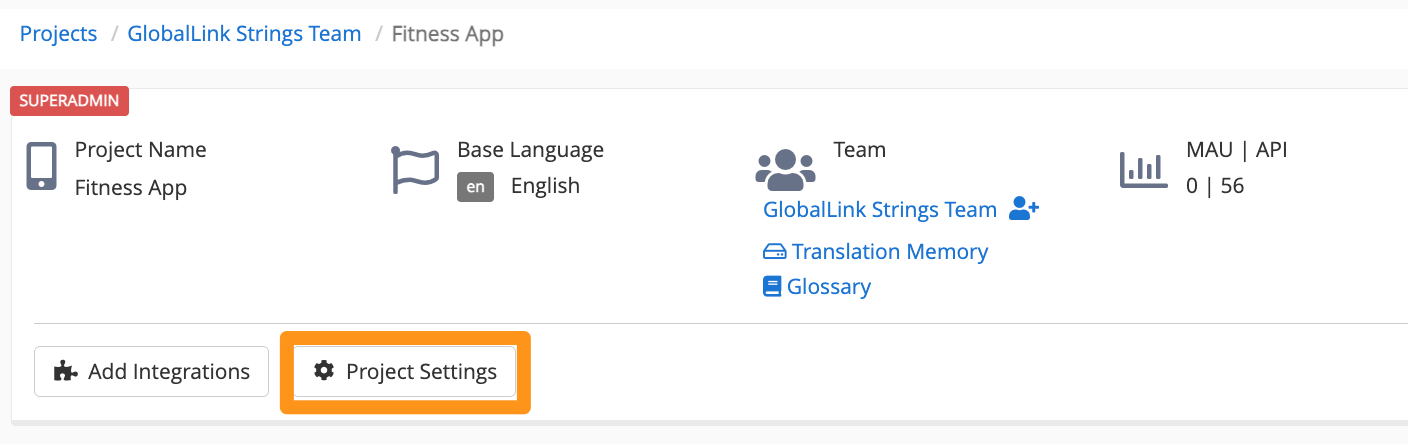
Click Project Settings
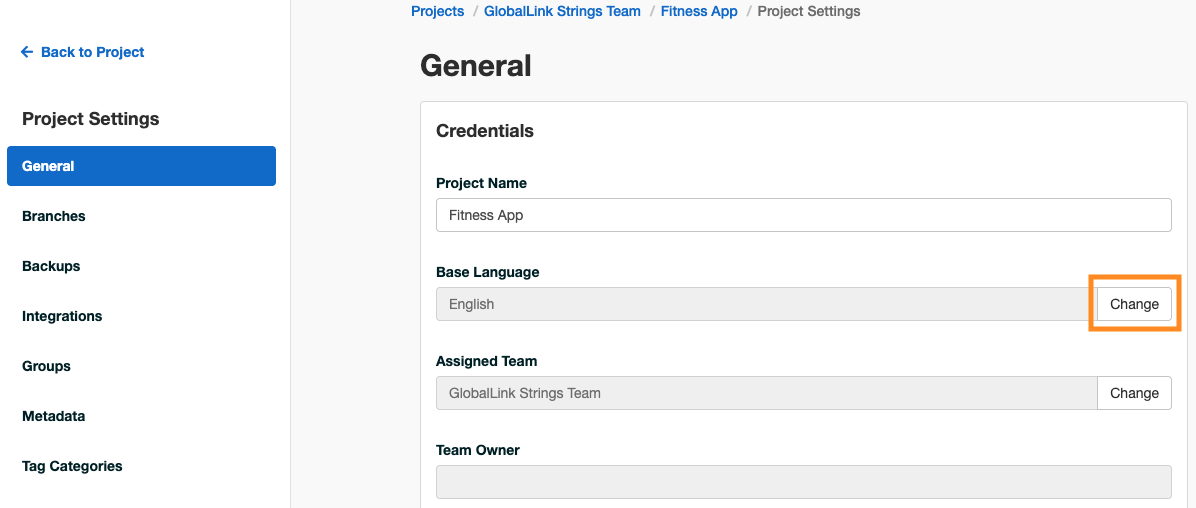
In the General tab > in the Credentials section > click Change for Base Language
In the Change the base language dialog, click the dropdown to select from the available languages in the Project.