


⭐ Starting with this release, all users will see the redesigned interface when they log in. The new interface makes navigation and organization clearer so the tools and information you need are easier to find. It also brings GlobalLink Strings closer to the other GlobalLink products for a more consistent experience across platforms. If you need more time to adjust, you can still switch back to the previous design:
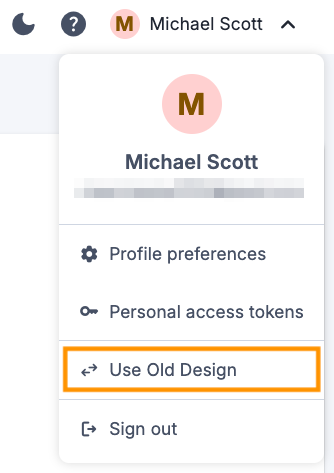
The old interface will remain available for a limited time. We recommend getting familiar with the new design now.
⭐ These pages are now included in the redesign:
Project settings: settings are organized into clear sub-pages, such as General, Branches, Backups, and Integrations, with a side menu for quick navigation.
Glossary: the redesigned glossary table keeps the base language fixed on the left, lets you show or hide target language columns, and keeps headers visible while you scroll. You can edit terms directly in the table, manage synonyms inline, and sort any column with a click.
Translation memory: the translation memory overview and editor now match the rest of the platform's look and feel.
All existing functionality in the updated pages remains the same. Only the look and layout have changed.
💬 Previously, some plugin views showed only the language code which made it difficult to identify and select the right language.
⚙️ The GlobalLink Strings Figma plugin now displays the full language names alongside the language codes in all its views. For example, "German [de-DE]" is now displayed in the Upload, Download, Translation Order, and Batch Screenshot Upload pages.
⚙️ The Order details page in the Figma plugin now shows the order brief entered when the order was created. The order brief is displayed below the source language. Line breaks are kept so longer briefs are easy to read. Orders without a brief show "-", the same as in the dashboard. You no longer need to navigate to the dashboard to view the instructions for an order.
Learn about our latest features and improvements
Read the Full Article
Learn about our latest features and improvements
Read the Full Article