Request translations from TransPerfect Translations by creating translation orders on GL Strings
On this page
ℹ️ Info: Before using the order translations feature in GL Strings, discuss language service requirements with your TransPerfect Translations services team.
Create a translation order
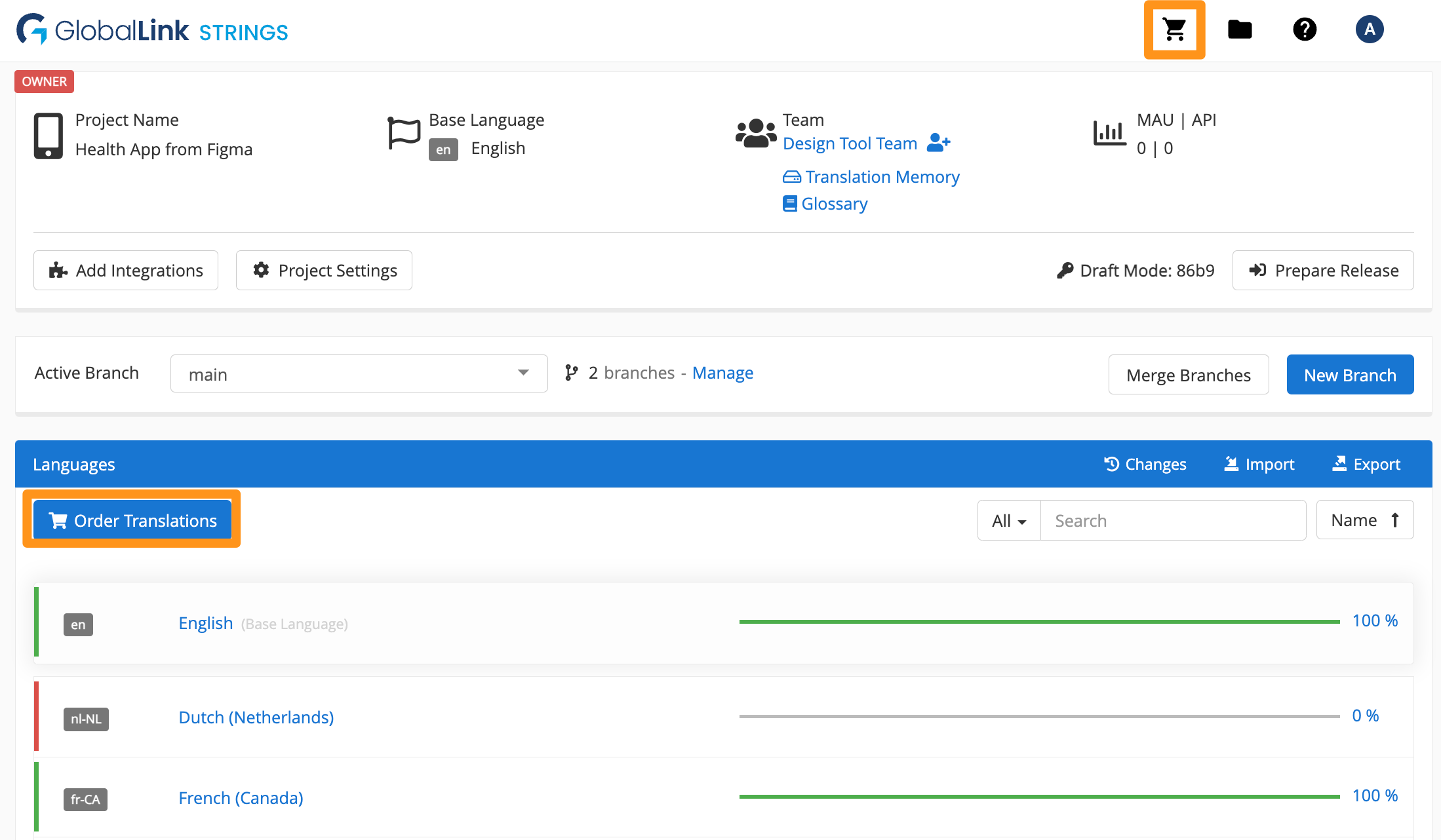
There are 2 ways to start a translation order from the GL Strings dashboard:
Through the order icon on the dashboard sidebar
Directly inside a project with the Order translations button
📝 Note: Once an order is created, any changes made to the source values will NOT propagate to this existing open order. However, if changes are made, the updated source values can be added to a new order. Unchanged source values that are already a part of an open order CANNOT be included in another order.
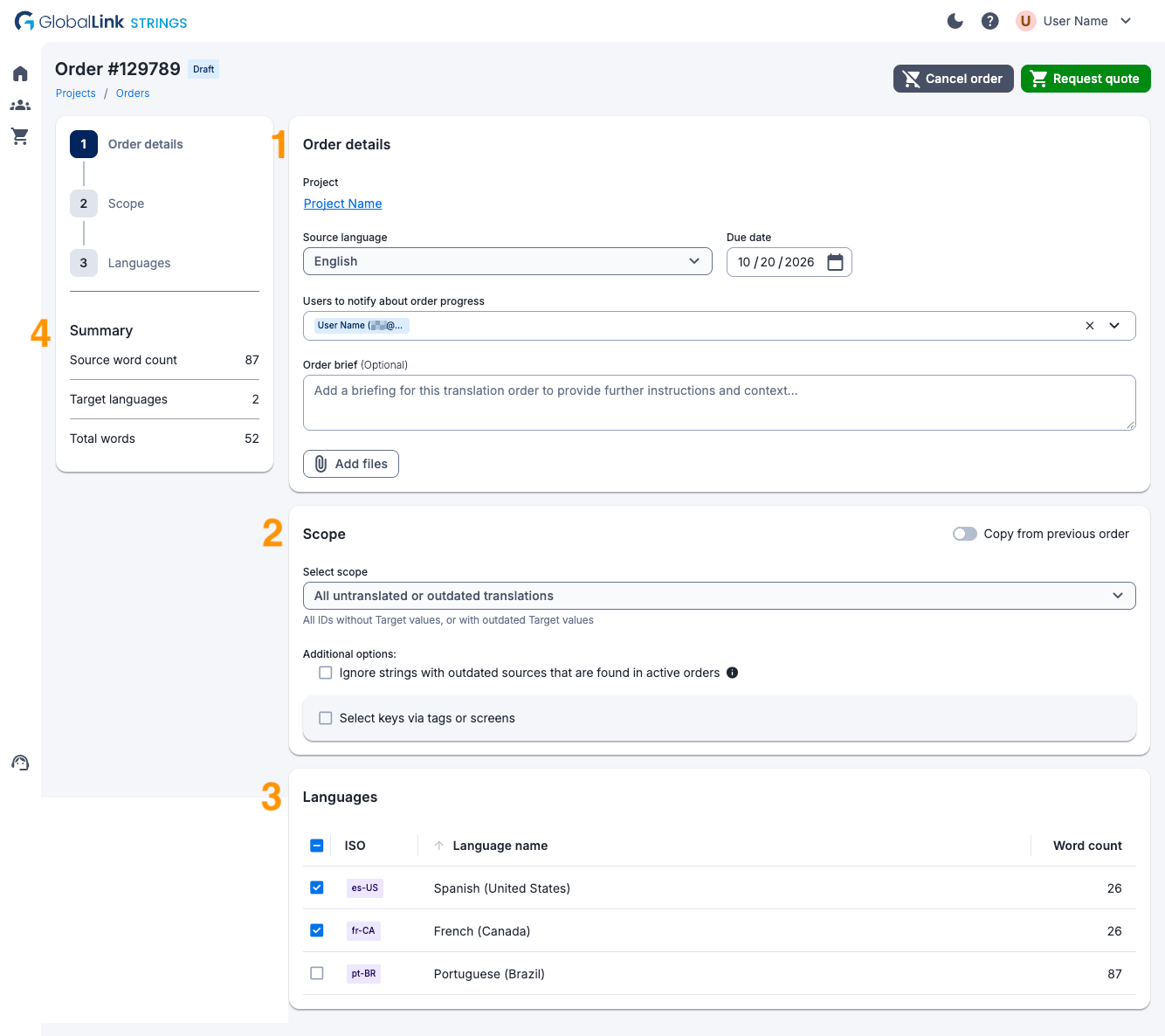
Order interface
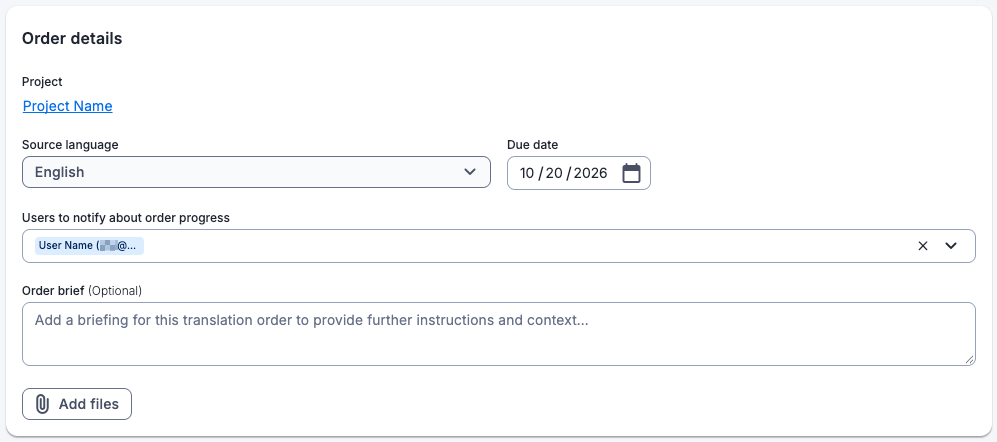
1. Order details
Source language: The source language for the order defaults to the base language of the project.
Due date: The due date defaults out to one month from order creation. You can change the due date as needed and TransPerfect Translation services team will use this as a guideline. However, the final due date will be communicated by the TransPerfect Translation services team in the quote.
Notifications: The user account that created the order initially will be notified automatically via email whenever the order changes status (see Email notifications). You can add additional users from the team to be notified using the dropdown.
Order brief: To provide any additional information, the Order brief field includes a free-form text field for you to leave a note with further instructions for the TransPerfect Translation services team.
Custom fields: Additional mandatory or optional custom fields can also be configured to be displayed in the order details. Discuss custom field requirements with your TransPerfect Translations services team. Once the fields are agreed upon and configured by your TransPerfect Translations services team, they allow you to send GL Strings orders to TransPerfect Translations with additional data.
Add files: To provide additional context, attach any of the string file formats GL Strings supports, any Microsoft office formats, any screenshot formats, or even zipped files.
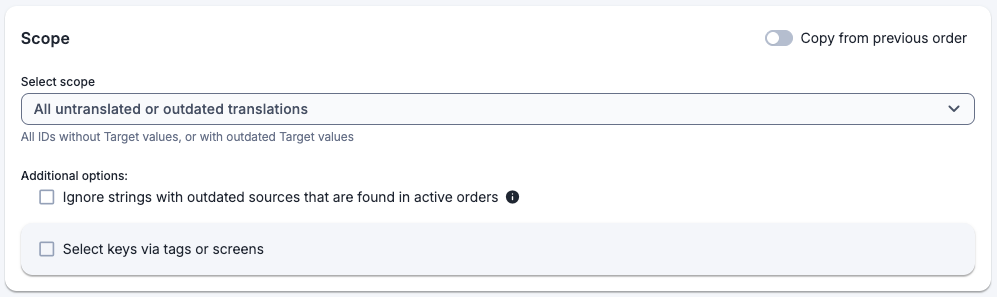
2. Scope
Copy from previous order: Toggle on this option to copy the scope from a previous order.
Copy whole order: Define the scope by selecting the order from the Order Number dropdown to copy from
Copy a language scope: Define the scope by selecting both the order from the Order Number dropdown and selecting one or multiple language from the Language dropdown to copy from
Select scope: Define the scope of the order by selecting from the dropdown which keys should be included in the order. These criteria are global across all languages in the order. If different criteria should be applied for different languages, individual orders per language need to be created. The following scope criteria are available:
All: All keys regardless of their current translation status
All untranslated: All keys without Draft or Target value
All outdated translations: All keys where the current translations are outdated because the source value has changed since the translation was added
All untranslated or outdated translations:
All keys without Draft or Target value +
All keys where the current translations are outdated because the source value has changed since the translation was added
All untranslated or outdated translations or with Pseudo-Translated:
All keys without Draft or Target value +
All keys where the current translations are outdated because the source value has changed since the translation was added +
All keys where pseudotranslation was applied within the GL Strings Editor - current psuedotranslation values will be overwritten
All with Needs Translation: All keys with the workflow status “Needs Translation”
All with Needs Review: All keys with the workflow status “Needs Review”
All with Rejected: All keys with the workflow status “Rejected”
All with Needs Translation or Rejected:
All keys with the workflow status "Needs Translation" +
All keys with the workflow status "Rejected"
All with Pseudo-Translated: All keys where pseudotranslation was applied within the GL Strings Editor - current psuedotranslation values will be overwritten
All with published translation: All keys with a Target value
All with translations exceeding Max Length: All keys with Draft or Target value which have exceeded a manually set character restriction
Additionally, if your project uses custom workflow statuses, you can select one of them as a criterion when creating the order.
Additional options: There are additional checkboxes at the bottom
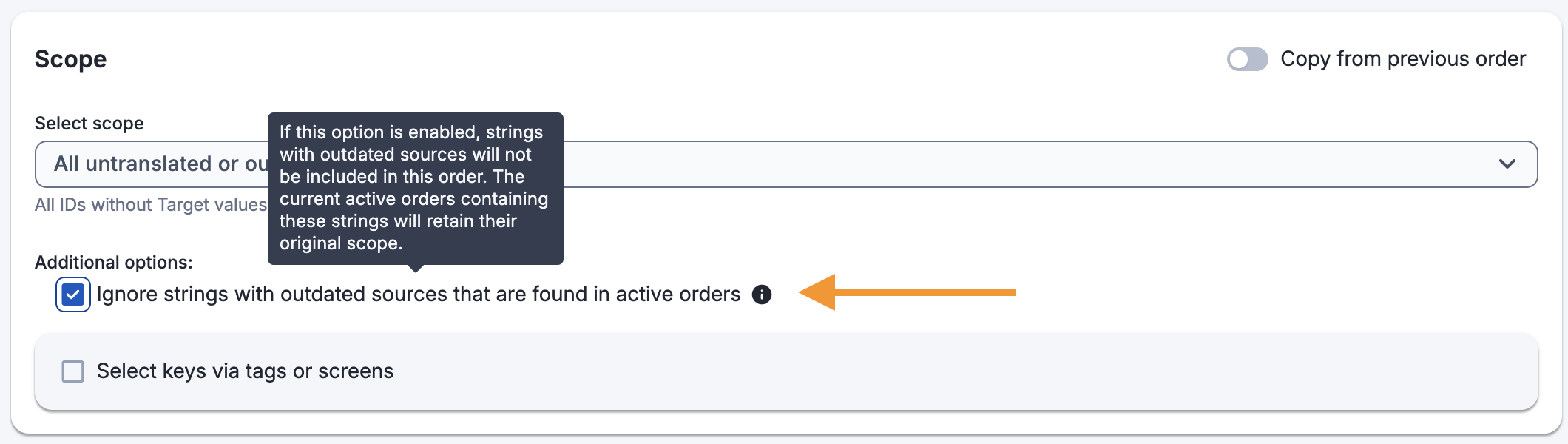
Ignore strings with outdated sources that are found in active orders
Select keys via tags or screens to limit the scope to one or multiple tags or screens
Filter to View screenshots only or View tags only
Search for a specific tag
Filter the search results by tag categories
Select keys via group to limit the scope to one or multiple groups. Note this option is only available when groups are enabled and keys exist in multiple groups.
Search for a specific group
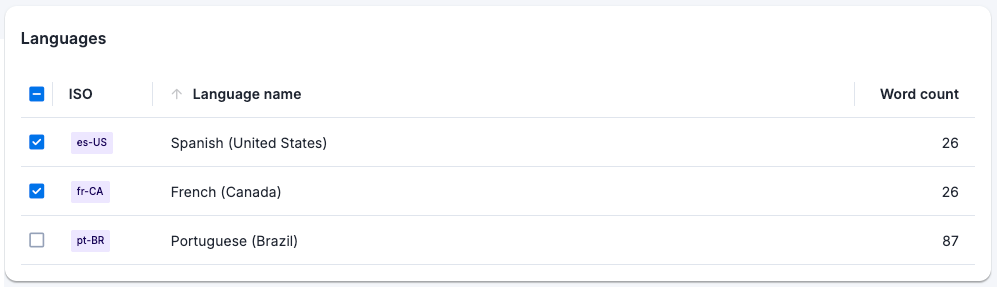
3. Languages
Select the languages that should be included in the order. Only languages that are part of the project on GL Strings are available for order. If more languages should be included, they need to be added on the project level first.
If some of the languages in the project are out of scope, it is also possible to exclude them from being added to translation orders altogether. The GL Strings team will help you configure this section before you create your first translation order.
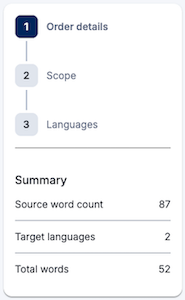
4. Summary
The summary provides the following information:
Source word count
The number of languages included in the order
The total raw word count for all languages included in the order
Quotes via GL Strings
The next step after creating an order is to create a quote request. How this quote request is processed may vary depending on what has been agreed with the TransPerfect Translations services team. As a general rule, TransPerfect receives the quote request and uploads a quote proposal to GL Strings. The requester is then notified that there is a quote for them to review, and they can accept or reject it within the order interface. If a quote is declined, there is a text field to explain why it was declined. If it is accepted, the order changes to processing status.
However, if you are already working with TransPerfect and the quoting stage takes place outside of GL Strings, order settings can be changed to skip the quoting step. This way, once an order is created, the content in scope is directly sent for translation.
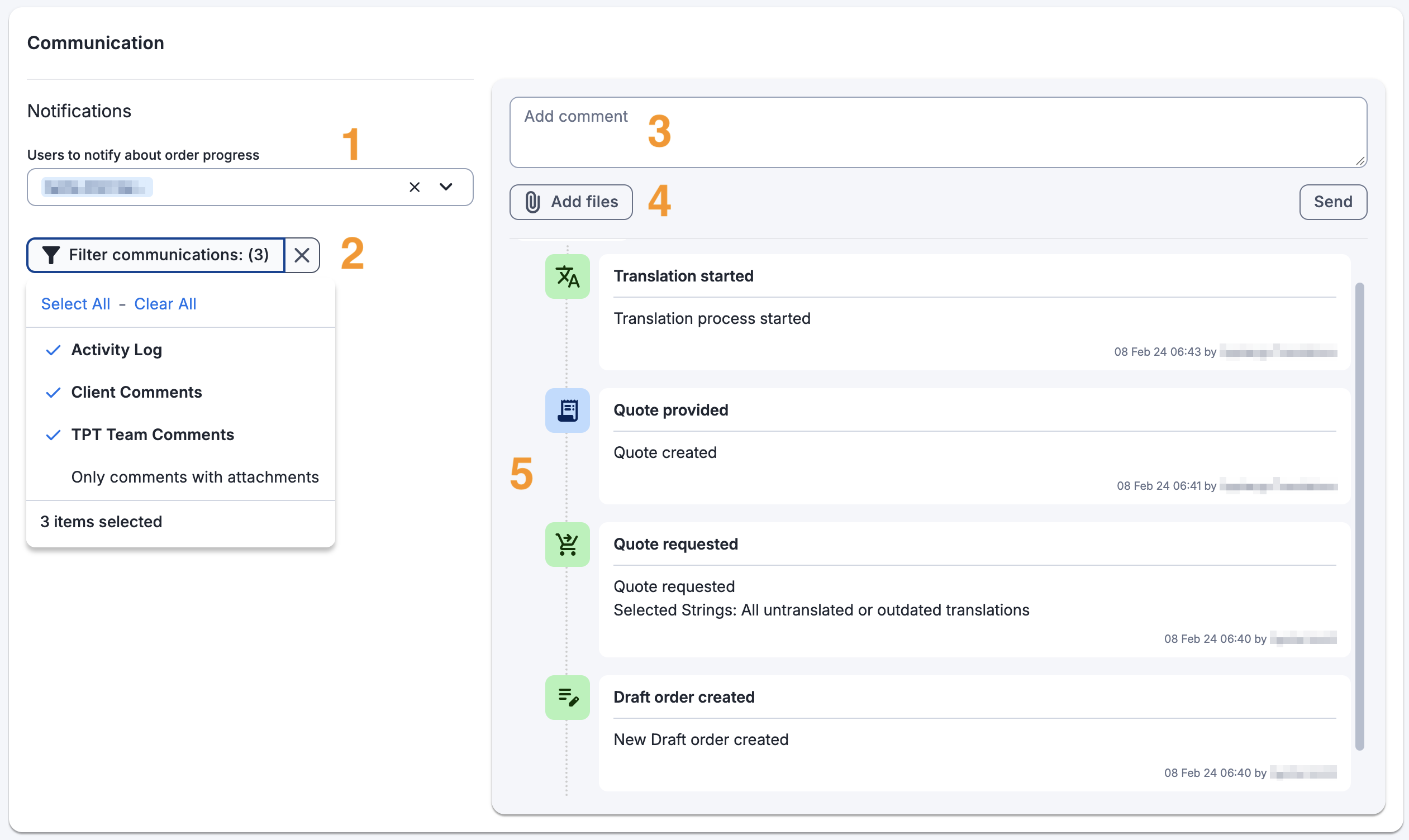
Communication
Once an order is created, a Communication section becomes available in the order interface.
Notifications: The initial team members that were added to be notified during the order creation, including the user account that created the order, are listed here. After order creation, you can add additional users from the team to be notified using this dropdown.
Filter communications: Communications can be filtered by
Activity Log
Client Comments
TPT Team Comments
Comments with attachments
Comments: Discuss with your TranPerfect Translation services team where standard order communication should occur. If established this is the expected channel of communication, add comments in this section to communicate with the TransPerfect Translations services team about this order.
Add files: Attach any of the string file formats GL Strings supports, any Microsoft office formats, any screenshot formats, or even zipped files to your comment.
Add outdated strings to a translation order
If a key's source value is edited, the updated source value can be included in a new translation order so that TransPerfect Translations services delivers the correct translation or updates the existing translation.
When a key's source value is updated, GL Strings will automatically detect and flag it. Users can create a new translation order and include these edited source values in the order's scope by selecting any criteria that includes outdated translations:
All outdated translations
All untranslated or outdated translations
All untranslated or outdated translations or with Pseudo-Translated
In the case of updated source values that are part of an active order, they will be included in the new order's scope by default, and removed from the original active order's scope.
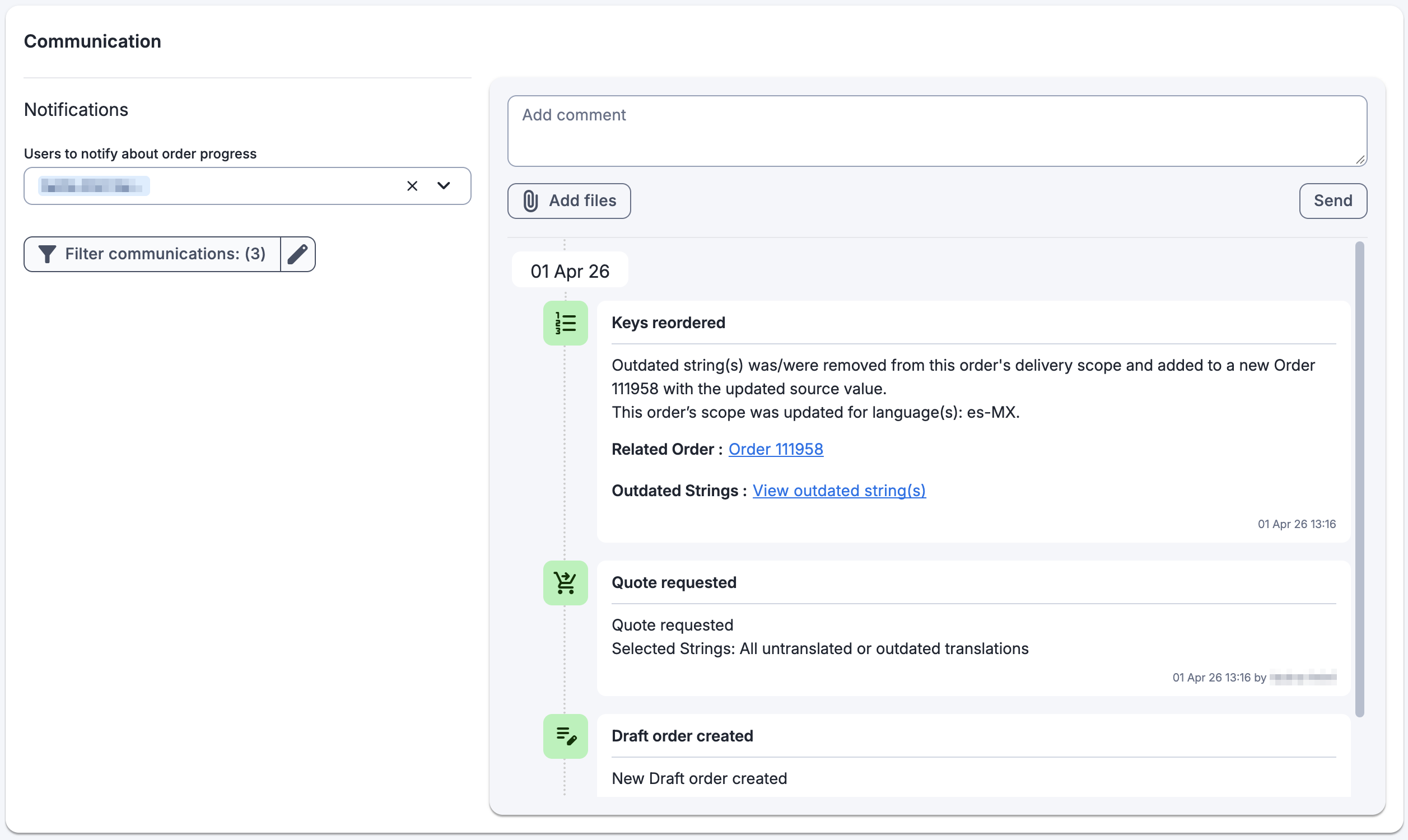
To notify users that the outdated strings have been removed, a note will be added to the Communication section of the original active order.
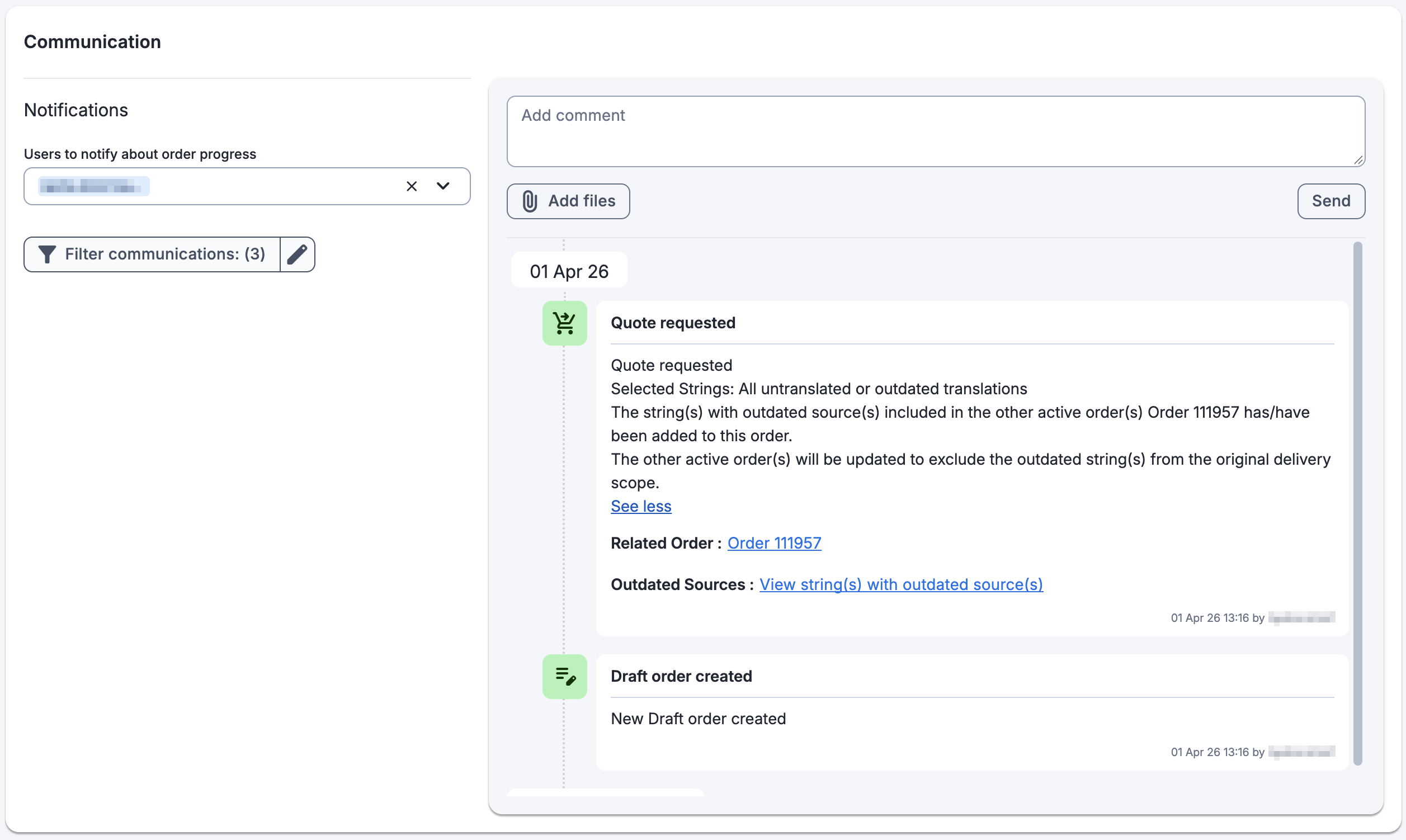
Additionally, a note will also be added to the Communication section of the new order to indicate that outdated strings from the original active order have been added to the new order's scope.
Both notes contain
a link to the other order
a link to view the list of impacted strings
It is possible to exclude outdated strings included in an active order from a new order's scope. To do that, simply check Ignore strings with outdated sources that are found in active orders in the Select Strings section.
Entry data passed to TransPerfect
The following data from each entry is passed to the TransPerfect Translations services team when an order is sent from GL Strings:
Key
Source value of key
Description
Max length
Email notifications
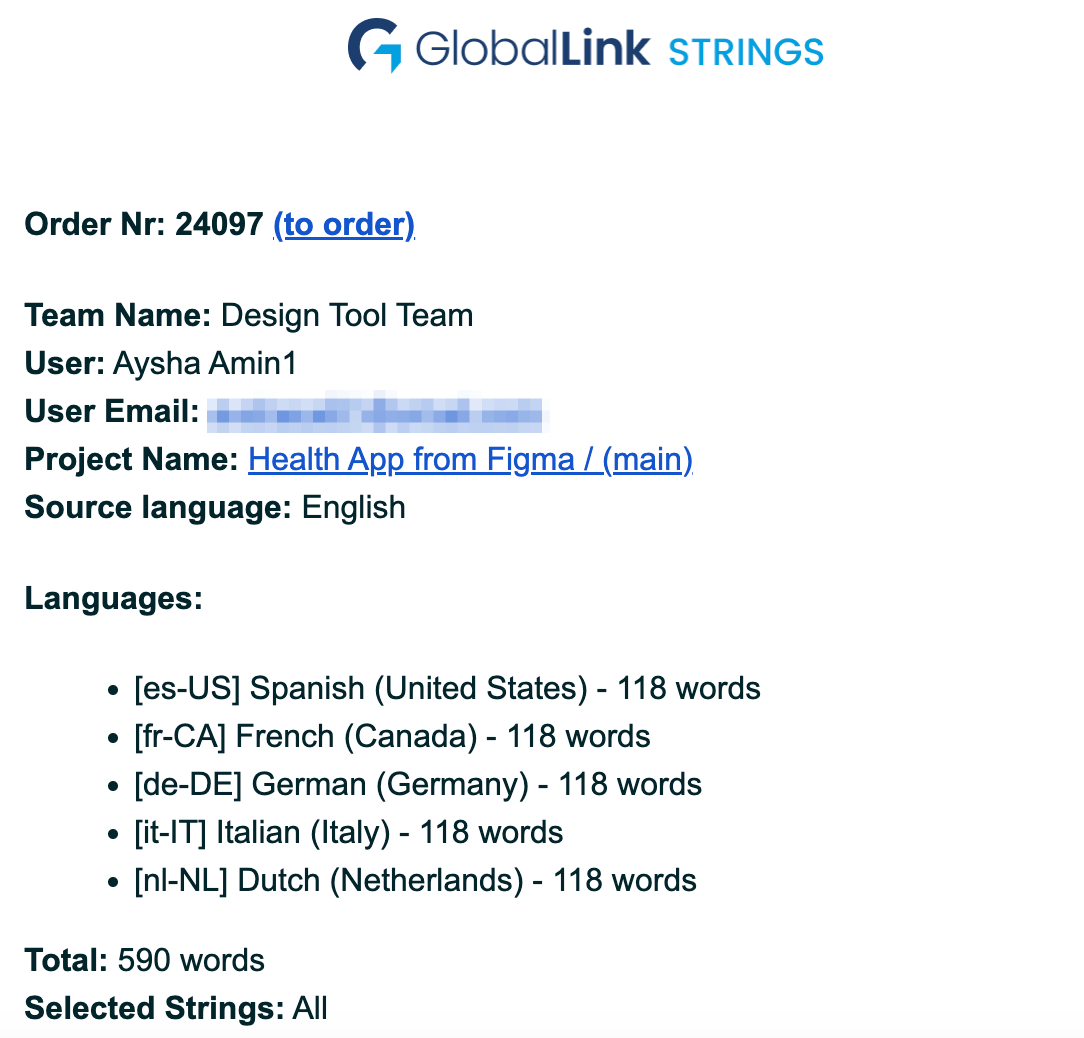
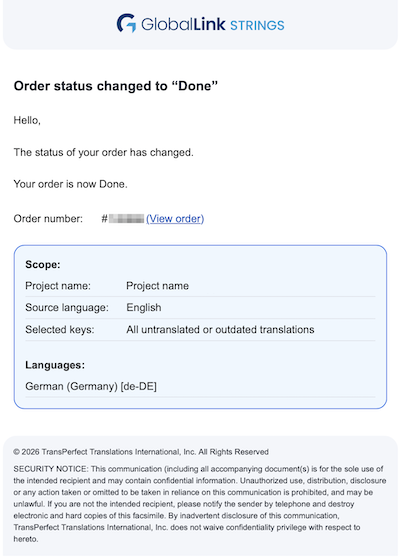
Email notifications are sent for the following order statuses:
For all users listed in order notifications and TransPerfect users
Quote Created: When a quote is sent for approval via GL Strings
Processing: When the translation process has started
Done: When the translations have been delivered
For TransPerfect users only
Quote Accepted: When a quote has been accepted
Quote Rejected: When a quote has been rejected
Additionally, when an order is completed, user groups can receive an email notification about new "Needs Review" or "Accepted" strings. For this to happen, you must have previously created a user group and enabled notifications for new "Needs Review" or "Accepted" strings, which are the two workflow statuses in which strings from an order can be delivered.
Finally, TransPerfect's job number can be added to the subject title of all email notifications to help your team keep track of translation jobs. If you are interested in this feature, please email us at support@applanga.com so that we can configure this for you.
Post delivery
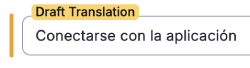
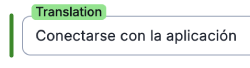
The translation delivery will be imported into the GL Strings project as Draft translations (proposed translations) and not immediately published to your integrated app. To have translations delivered as Translations, speak with your TransPerfect Translations services team to update the translation delivery settings.
Identify Draft translations vs Translations on GL Strings
Drafts translations (yellow) are unpublished proposed values that should be reviewed first.
Translations (green) are published values that are immediately available to the integrated app and its users.
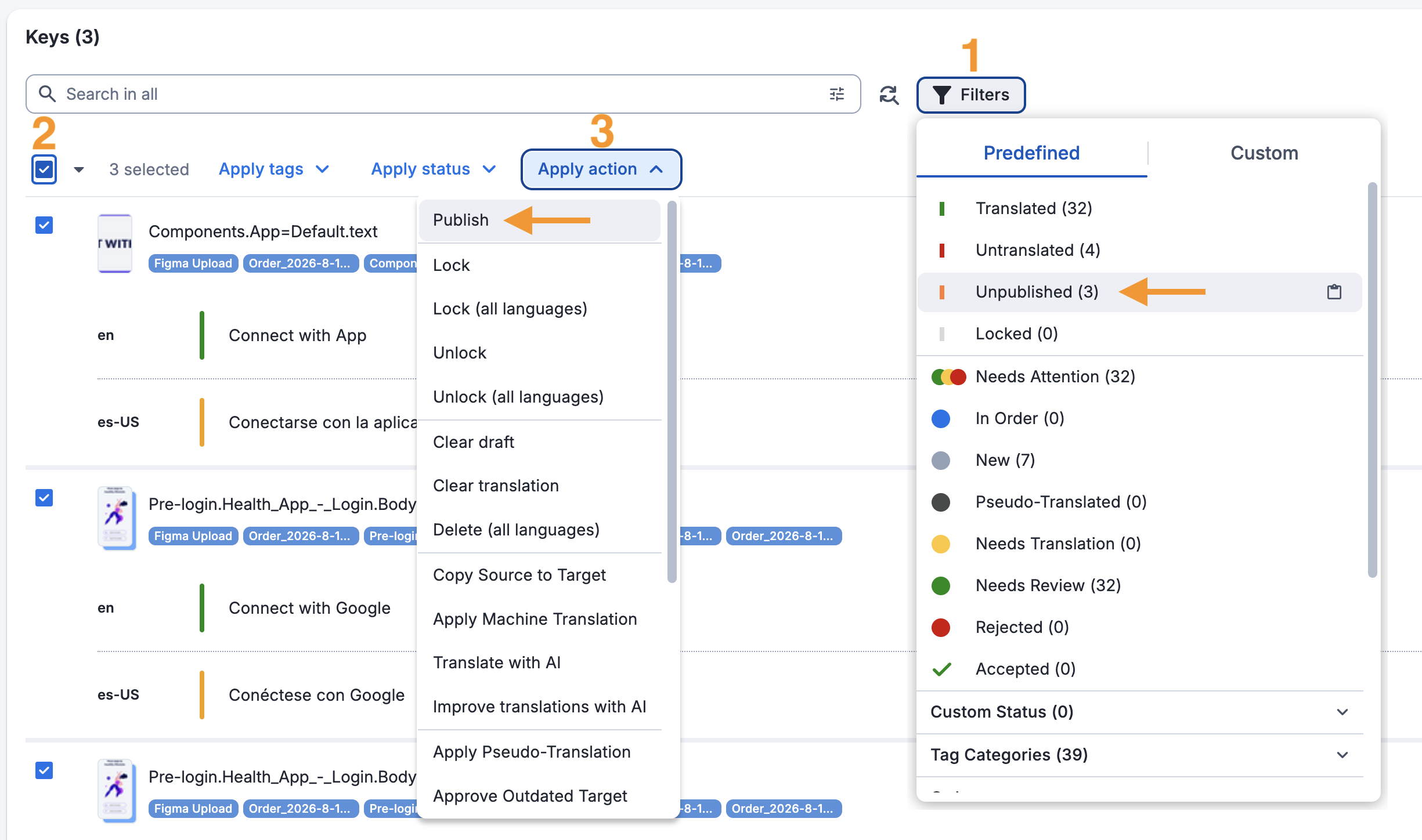
To publish the Draft translations, you need to:
In Filters, select Unpublished
Select all filtered strings
In Apply action, select Publish
Basic order troubleshooting
Update entries after an order was created
Please note that once an order has been created, any changes made to a key's source value will NOT propagate to this existing open order. If you need to include changes to entries in an order, there are a couple of options.
If the original order is not yet in the processing status, the order can be cancelled and a new one can be created. This new order will capture the changes to the updated source value.
If the order is already in the processing status, you can wait until it is completed and submit a follow up order to include outdated translations.
If the translations can't be delayed, you can create new entries in the project for those updated strings and create a separate order. See Cloning strings for more information.
Unable to create an order
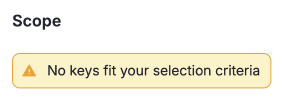
If the word count for an order shows as zero and you are unable to create an order, there are two main reasons for this issue. Either no keys meet the scope criteria of the order OR all keys within the scope criteria are already included in another open order. You can't create an order for keys that are already included in another open order.
If no keys match the selection criteria for the order, the Scope panel will display a warning: No keys fit your selection criteria
And you will need to update the criteria in the Scope panel of the order.
If the keys are already a part of an active order, you can proceed with one of the following actions:
If the original order is not yet in the processing status, the order can be cancelled and a new one can be created.
If the order is already in the processing status, you can wait until it is completed and submit a follow up order to include outdated translations.





 And you will need to update the criteria in the Scope panel of the order.