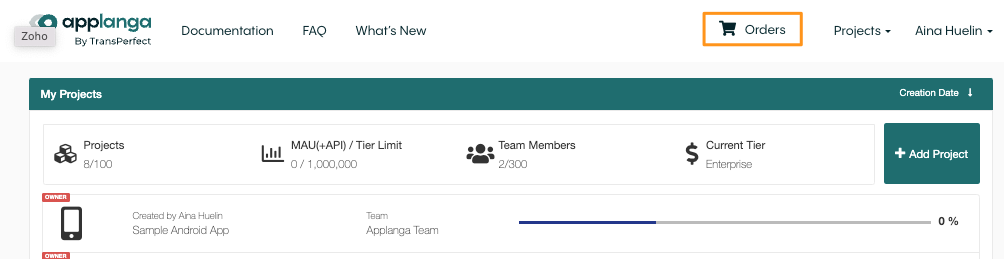
On the top right-hand side of the Applanga dashboard, click on Orders to access the Orders page:
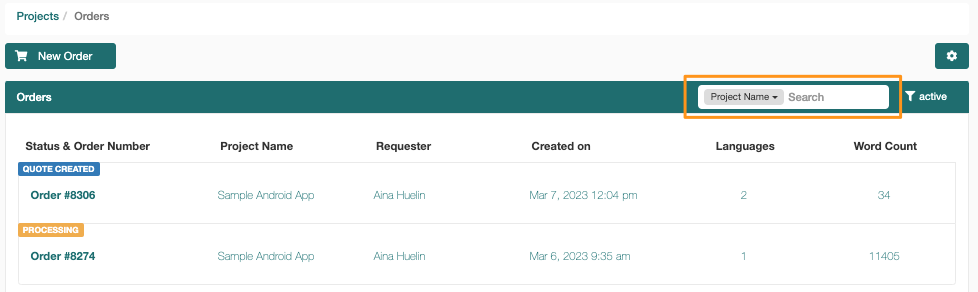
The Orders page displays the list of orders linked to your projects.
There is also the option to create a new order via the New Order button, and two filters to manage the order list.
The first filter (see screenshot below) can be used to search orders based on the project name, the order number, or the requester.
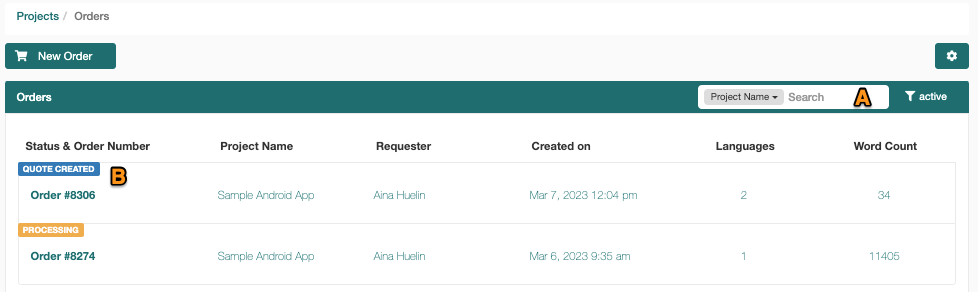
The second one, the funnel filter (see screenshot below, marker A), can be used to filter orders by status. The order status is easily distinguished because there is a status tag on top of each one (marker B).
By default, the orders page will show only active orders, but the filter can be set to display:
All: all orders
Closed: orders with “canceled” and “done” status
Open: orders with “draft”, “quote requested” and “processing” status
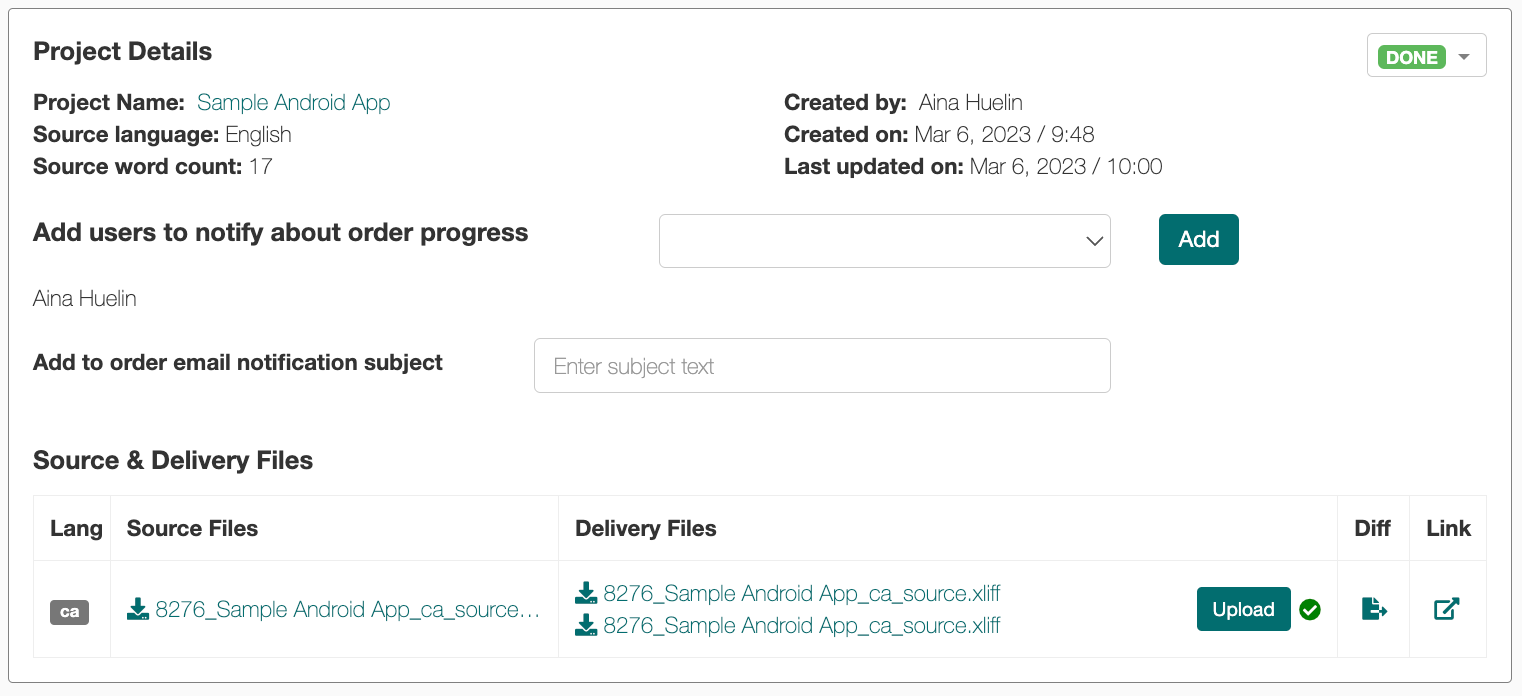
By clicking on any of the orders from the Orders page, users can access the order overview. The order overview includes:
The Project Details which contains the following information:
Project name
Source language and source word count
Order creation and last updated time stamps
List of users that receive notifications about the order progress
The Order Status
Source and delivery files
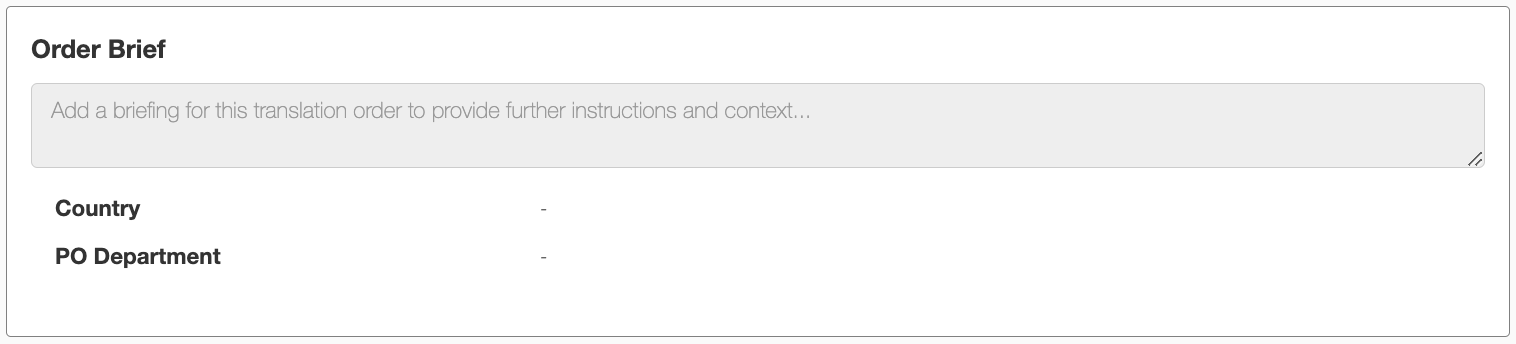
The Project Brief includes any additional instructions or documents that have been added to the order. In this section, you will also find the order’s custom fields.
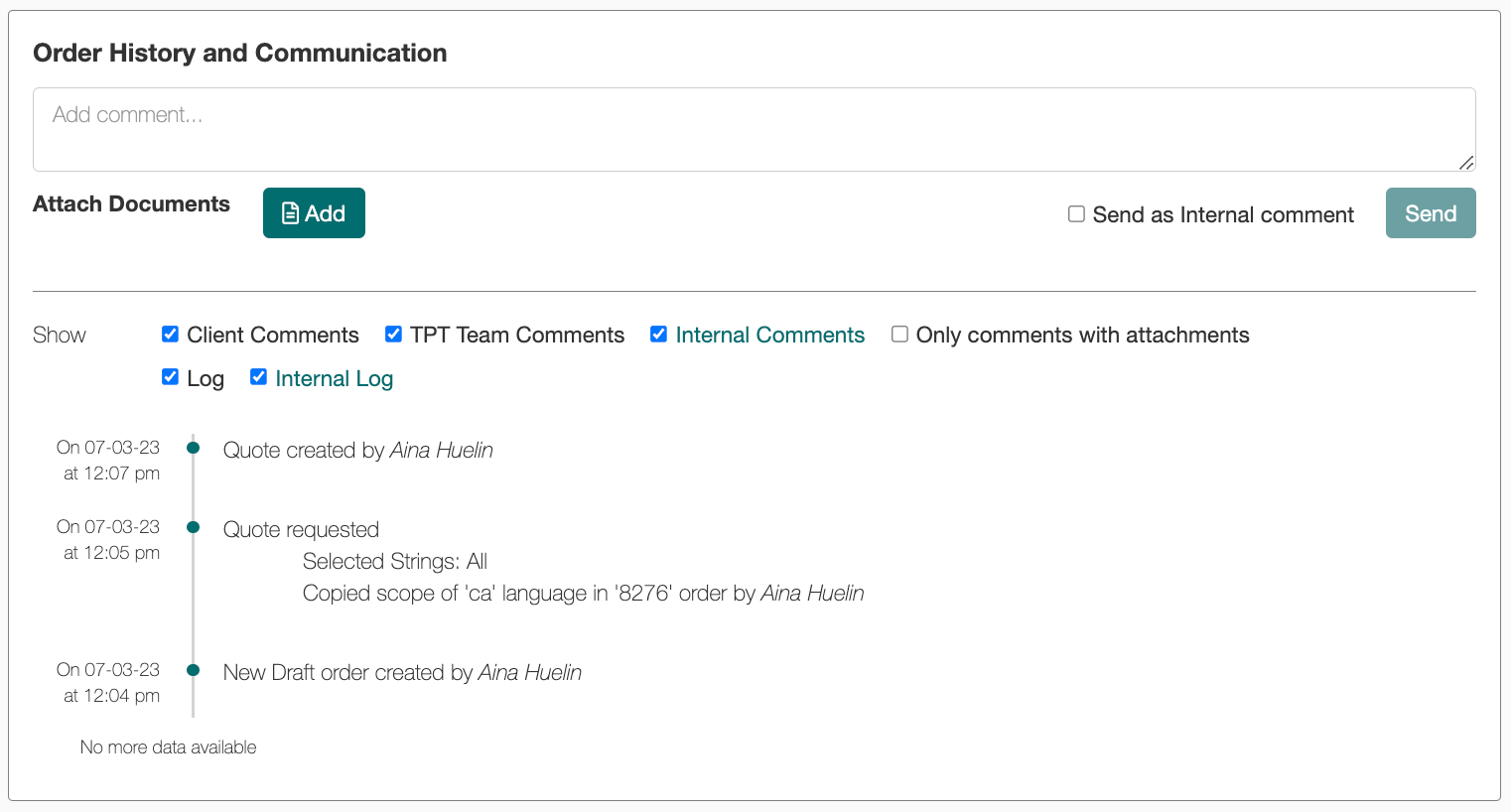
The Order History and Communication section includes an audit trail. It shows all the activity related to the order, as well as the time stamp. Client users and internal users can also add comments and attach documents here. Any comments left in this section will generate a notification email.
At the top of the audit trail, there are checkboxes to filter entries based on different criteria.
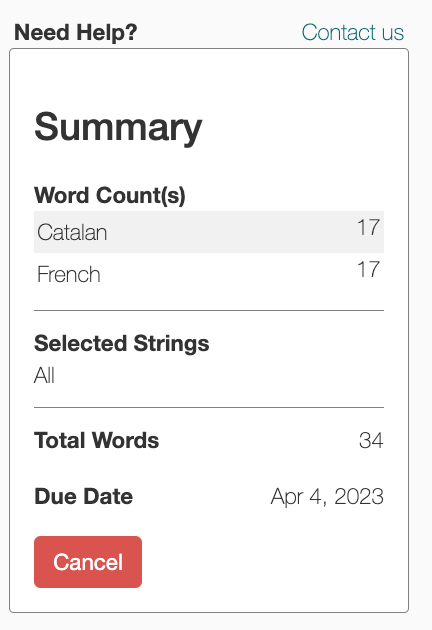
The Summary displays which languages are included in the order, the string selection criteria, the word count per language and the overall word count of the order as well as the due date. From this section, users can also cancel the order before it starts processing.