How to manage your Teams on the GL Strings dashboard
On this page
This article will show users how to manage Teams on GL Strings.
Teams can be created together with a project or users can choose to assign an already existing team during the project creation process. If users need to change the team of an existing project, users must be the Owner of the current project as well as the other project the team should be assigned to.
Within a Team, specific user roles can add other team members, change roles, or delete members from a Team. See the Roles and Permissions page for more information.
How to Navigate to Teams
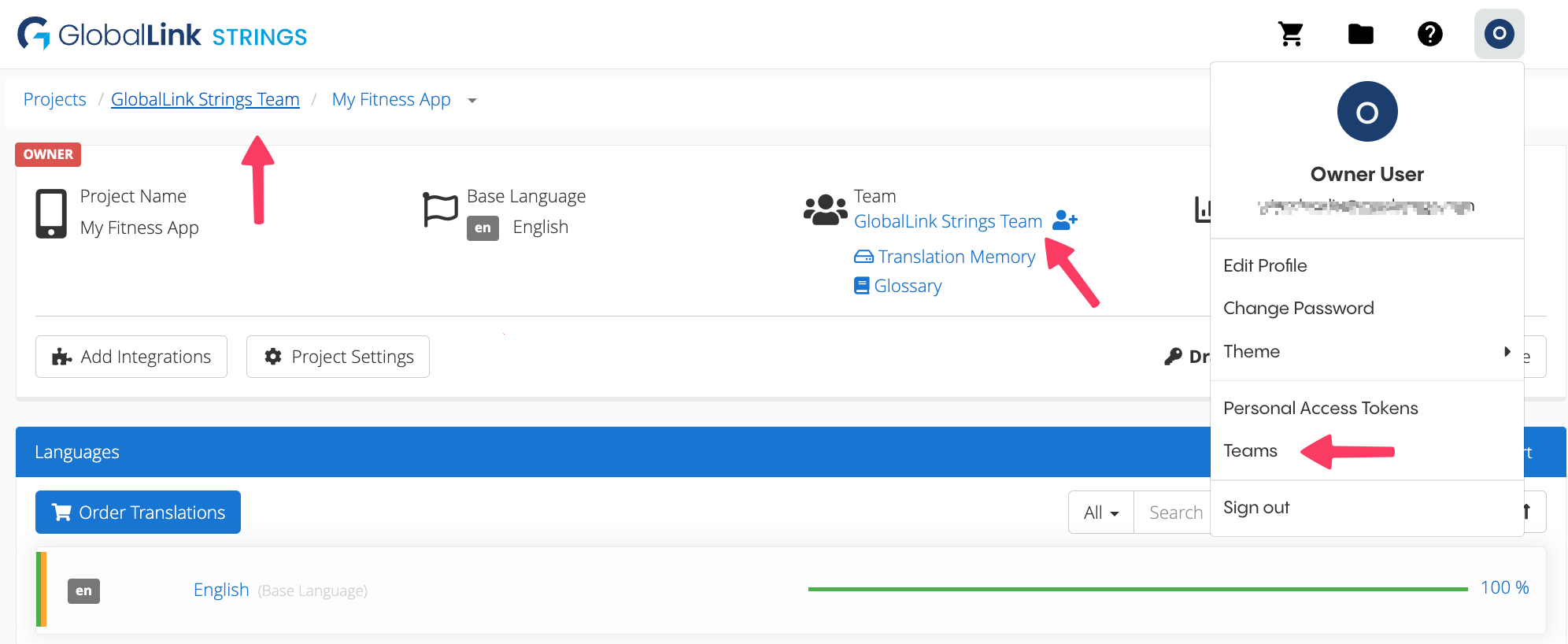
From the User Dropdown Menu
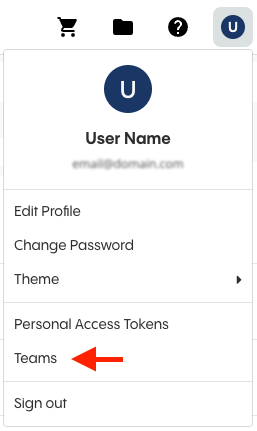
Click your name in the top right corner to open the User dropdown menu
Select Teams
From the Project Page
Click the Team name in the page breadcrumbs or in the Project Details Panel
How to Add Users to a Team
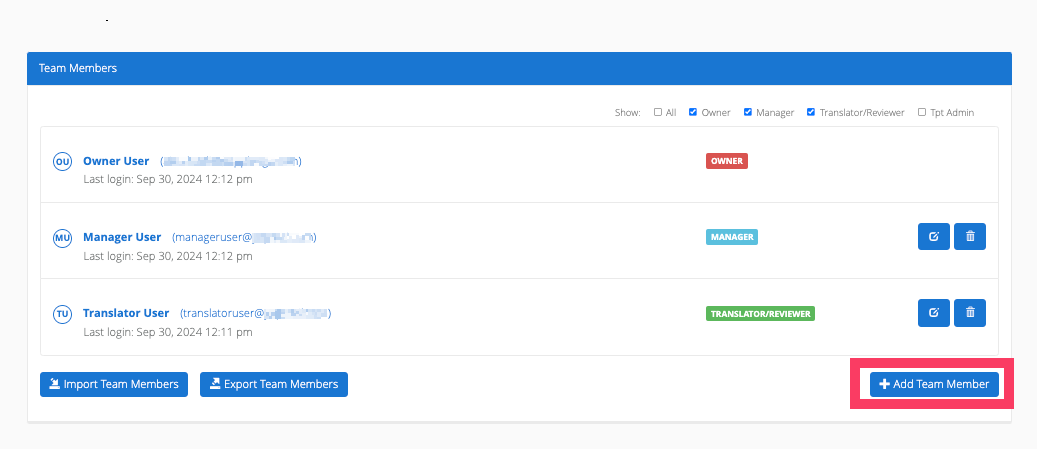
After selecting the team to update, scroll past the projects to the Team Members section
Click the Add Team Member button
Add the team member’s email address then select the role (if the team member is a new GL Strings user, enter their first and last name)
The new team member will receive an email invitation to join the team
How to Add Users to a Team in Bulk
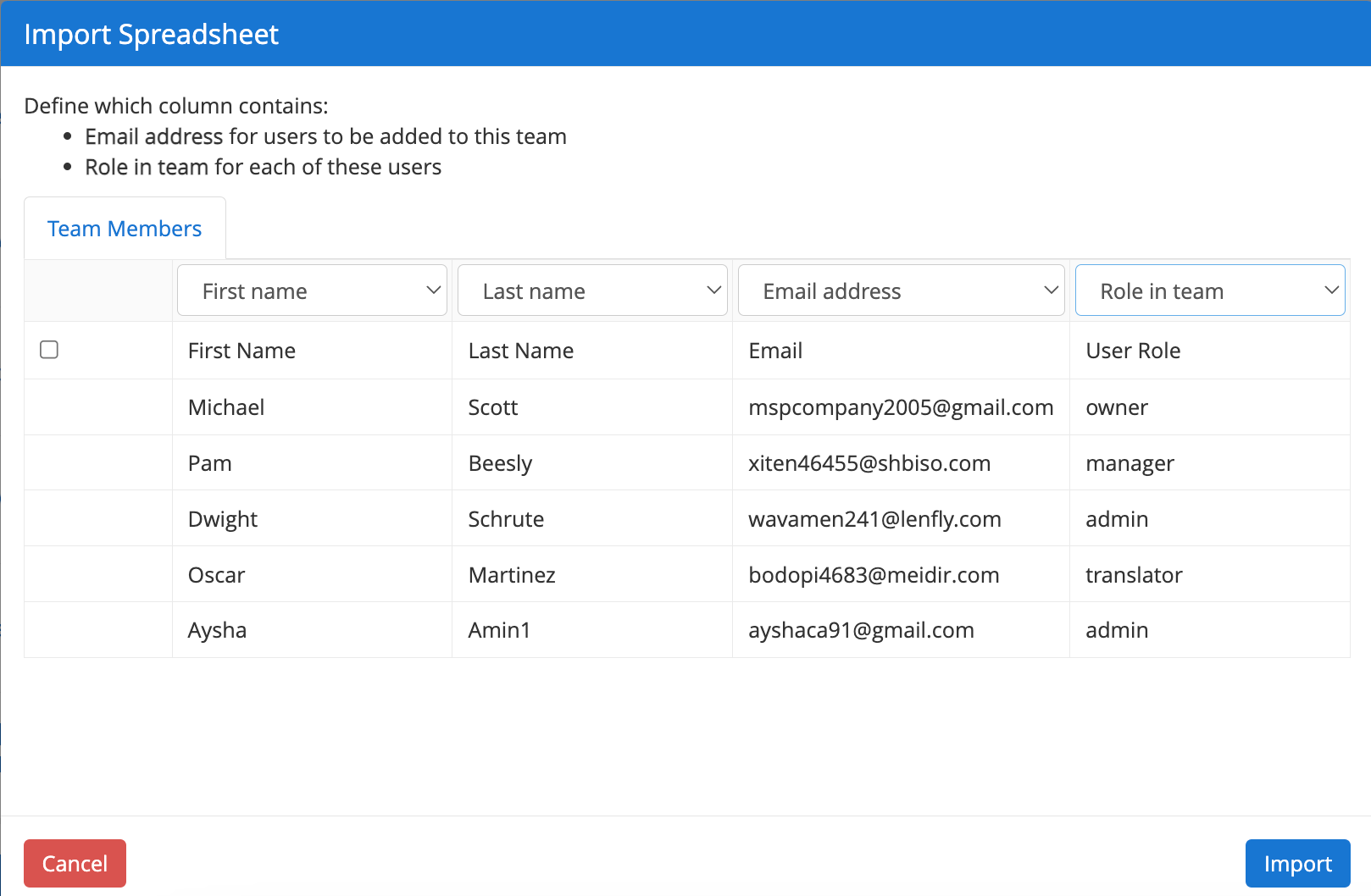
You can also import team members in bulk using a .xlsx. You will need to have one column for each field: First Name, Last Name, Email Address, User Role.
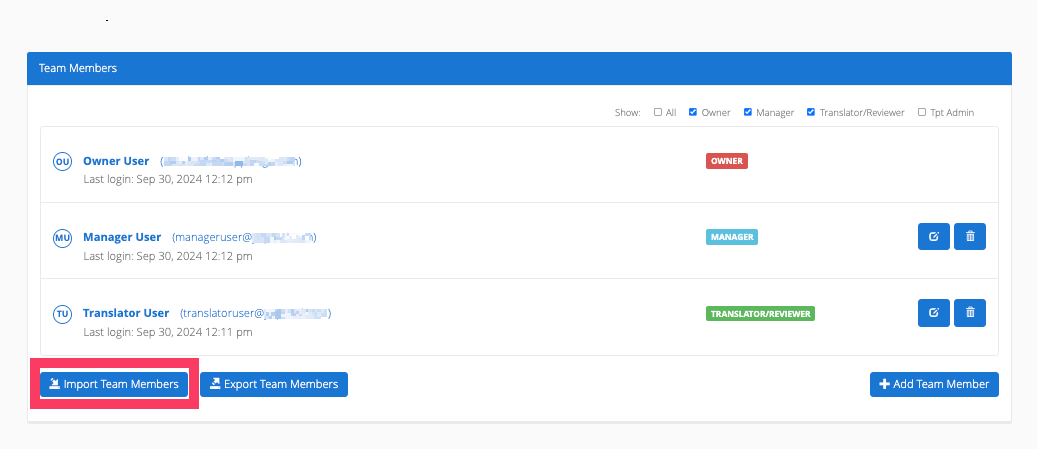
Click Import Team Members
Select the .xlsx from your file browser
Define each column (First Name, Last Name, Email Address, and User Role)
Click Import
How to Update a Team Member's Role
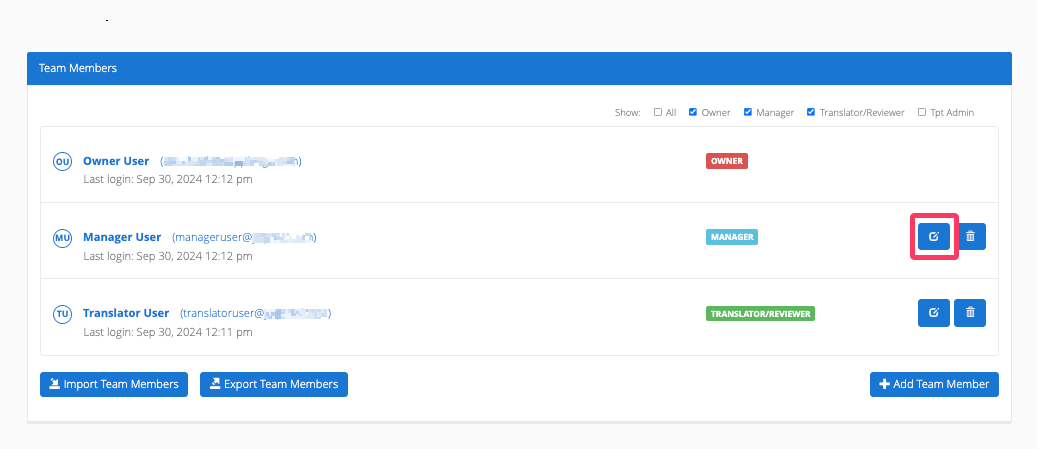
Click the edit icon in the team member’s row
Use the dropdown menu to select the new role for the team member
Click the check mark to update the role
How to Remove Users from a Team
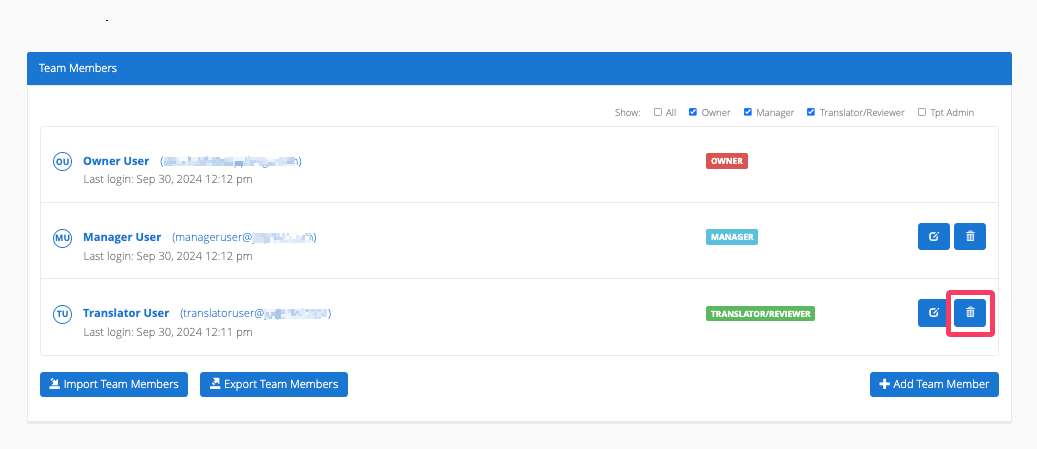
Click the trash can icon in the team member’s row
Confirm the team member removal in the pop-up
How to Remove Users from All Teams
Account owners can remove users from across all their teams. To do so:
Click your name in the top right corner to open the User dropdown menu
Select Teams
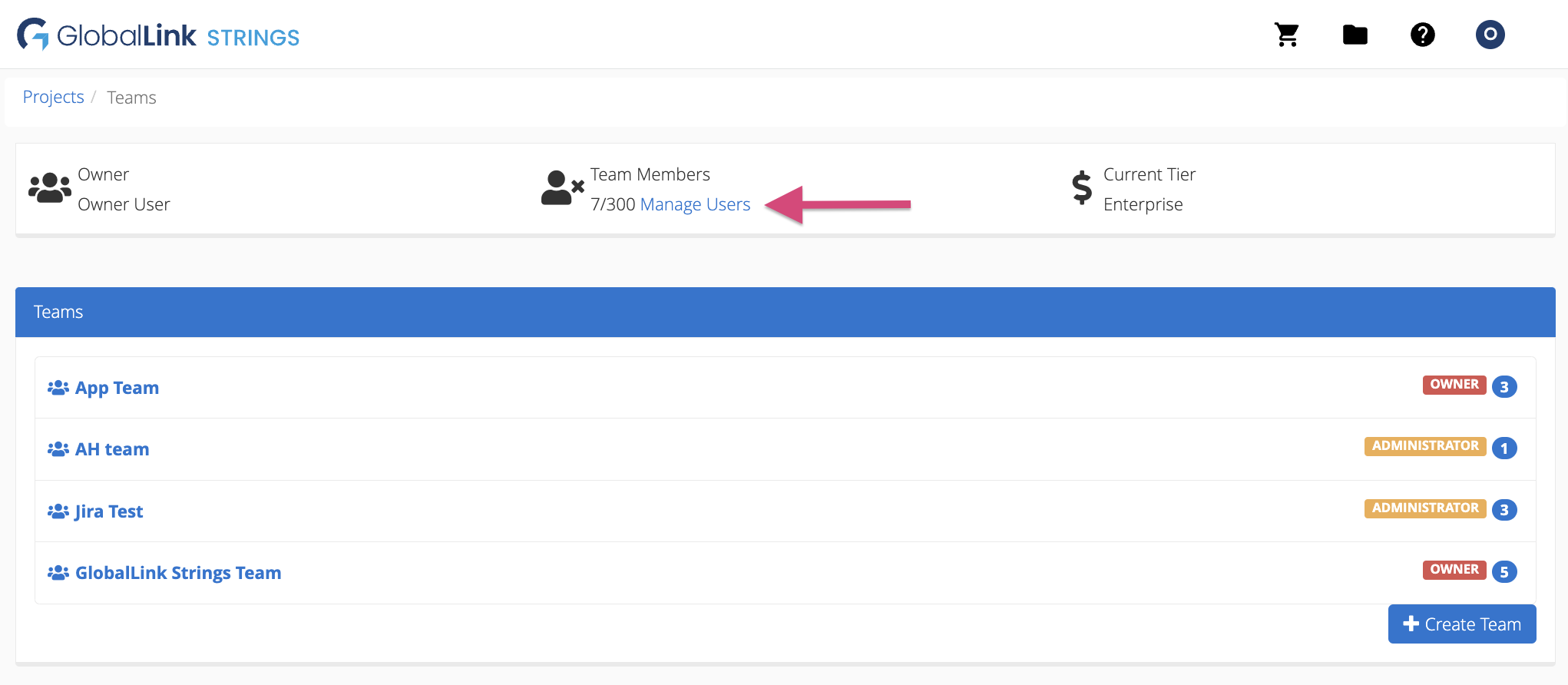
At the top of the page, under Team Members, click Manage Users
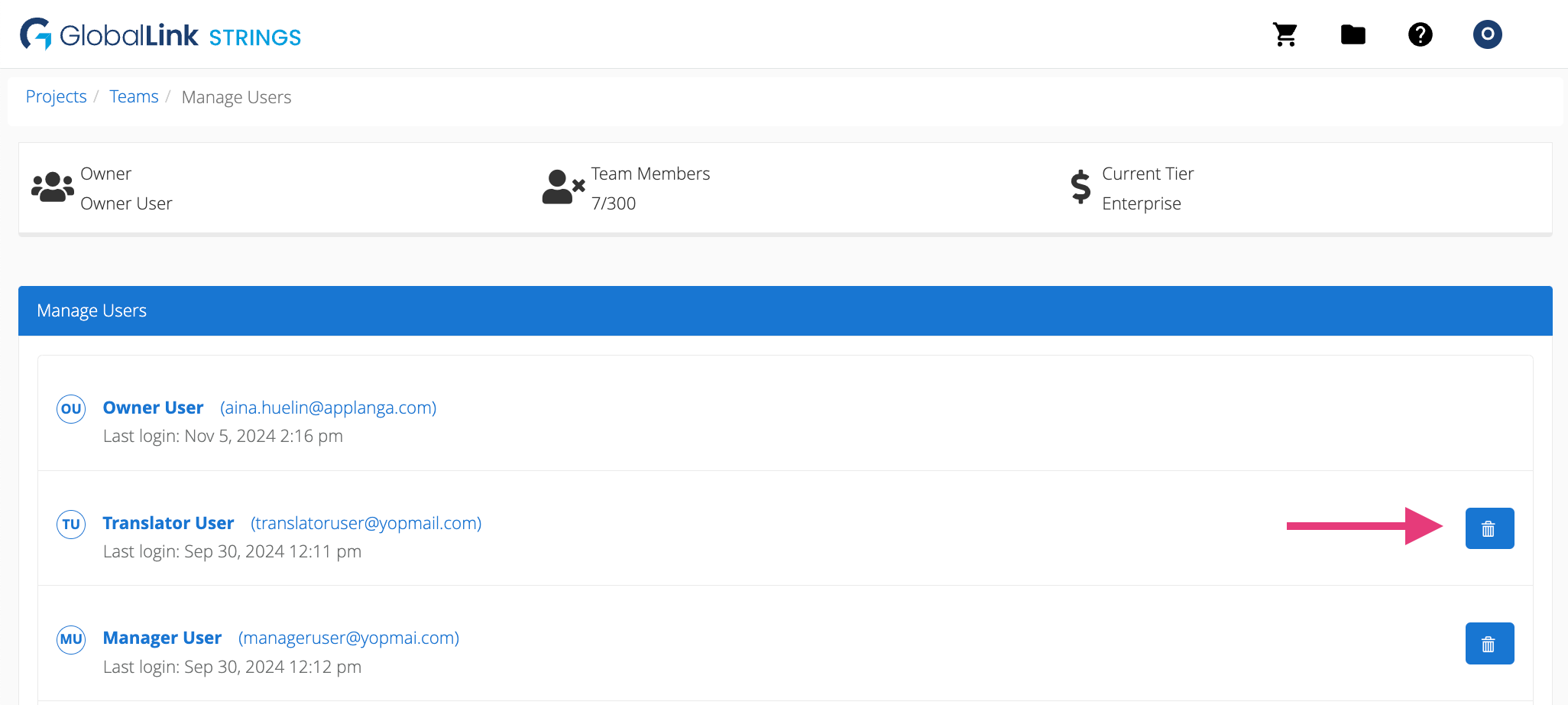
From the Manage Users page, account owners can view all the users that are included in their team(s) as well as their last log in date. To remove a user from all teams, click on the trash can icon.
How to Create a Team
Click your name in the top right corner to open the User dropdown menu
Select Teams
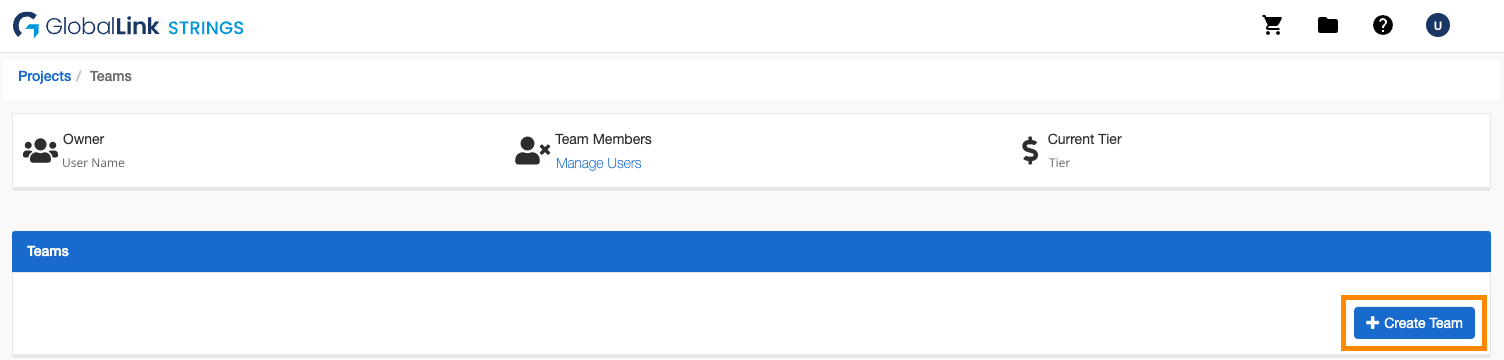
Click + Create Team in the Teams page
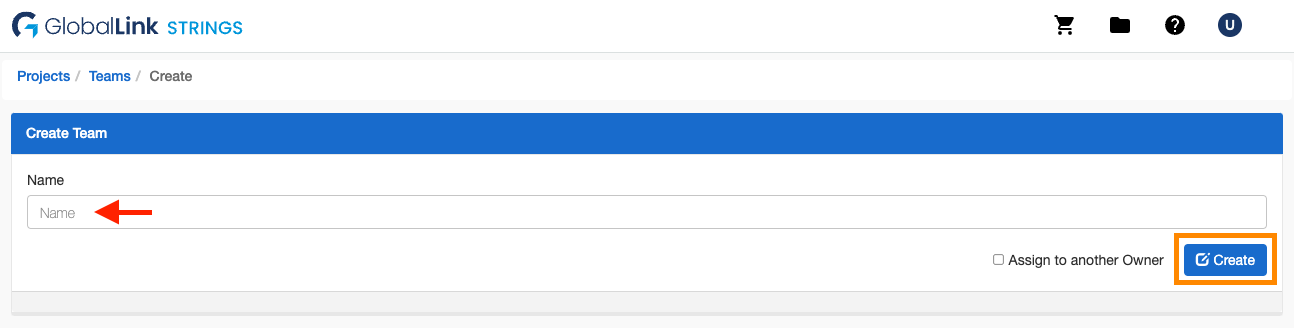
Enter the name for the team you want to create
Click Create
Team Changelog
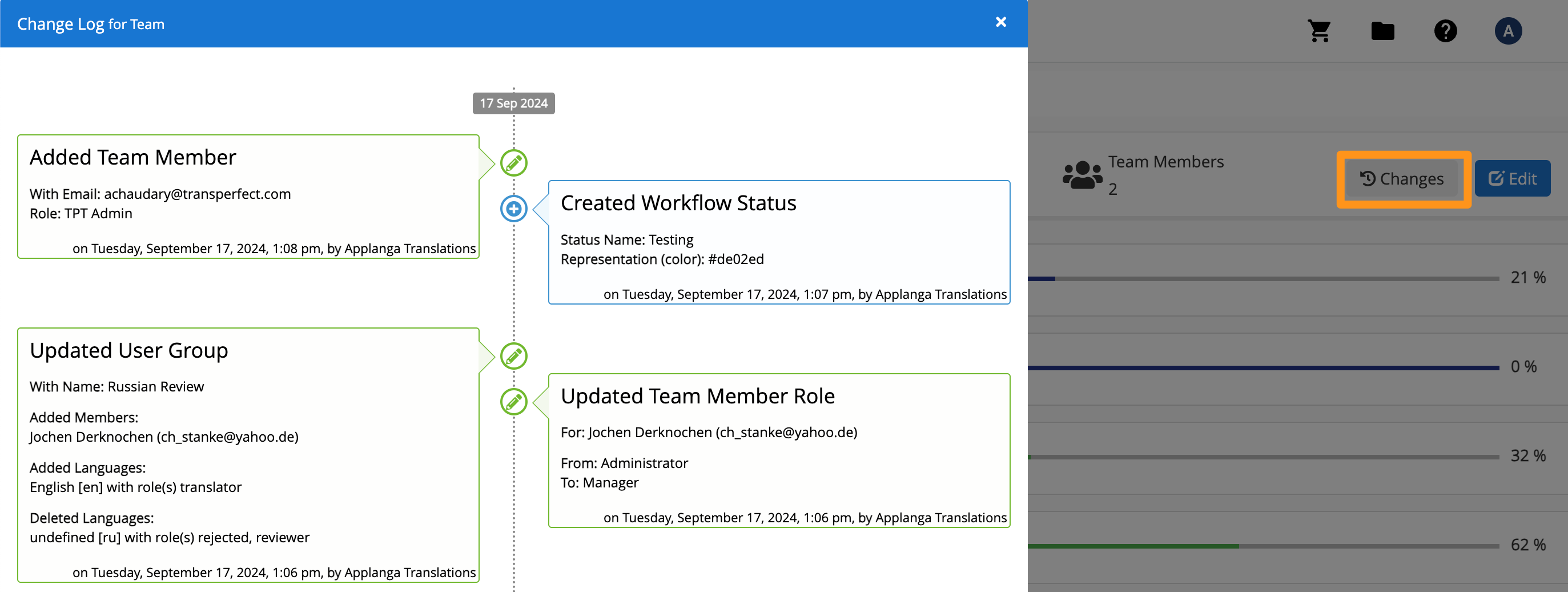
The team changelog monitors and records any changes made at the team level. This can include events such as adding or removing members, changing user roles, changes to custom statuses, changes to user groups, rule changes, creating or deleting projects, and edits to the team's name.
To access the Team Changelog, navigate to the teams page then click Changes in the top right corner.